
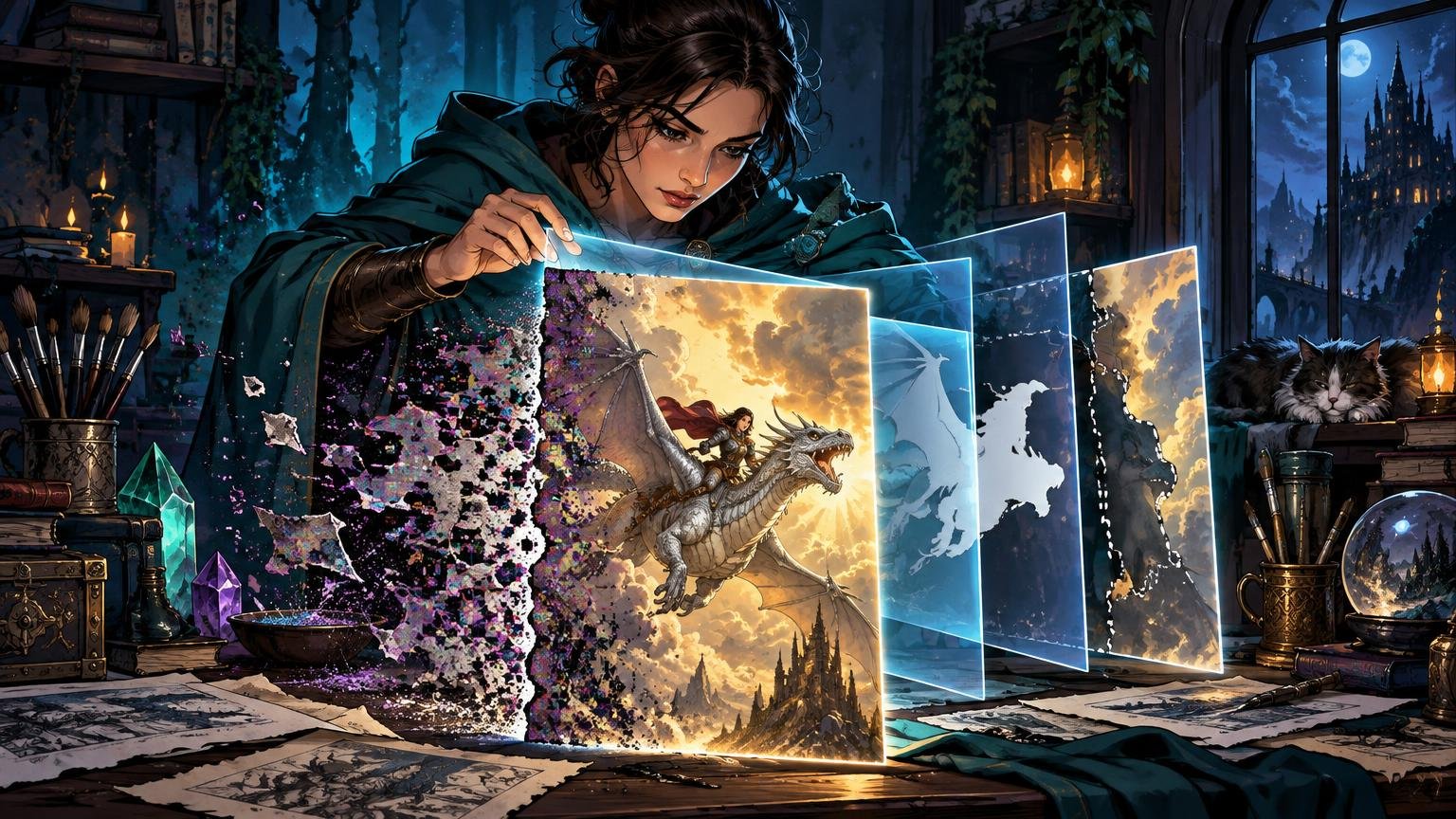
A silver-armored knight can look magnificent at full-screen size and turn into a bright, metallic thumbprint inside a card frame. The purpose of cleanup is not to polish every surface until it squeaks. It is to preserve the image’s focal story while removing the defects that interrupt it: tangled silhouettes, false edges, muddy values, stray color, synthetic texture and details that collapse when reduced.
The short answer: protect the original, test the intended crop, repair composition and anatomy before surface detail, make tonal and color changes locally, and treat denoising and sharpening as separate finishing operations. Inspect transitions at 100%, but make the final aesthetic decision at physical card size. A beautiful zoomed-in edit that becomes unreadable when reduced is still an unsuccessful card image.
Diagnose the image at its final scale first
Begin by placing the artwork in a rough card layout. Do not wait until the end to discover that the creature’s face sits under a title bar or its elaborate spear exits through an unforgiving crop. If the selected card-building workflow provides safe-zone and bleed views, use them before investing time in decorative cleanup. PrintMTG’s card maker, for example, separates normal-card and bleed views and allows uploaded artwork to be scaled and repositioned. Important faces, hands, weapons and symbols should be checked against those boundaries early.
At thumbnail size, ask three questions: What do I see first? What action do I understand? Which shape disappears? A strong image usually has one dominant focal event—a face caught by light, a spell crossing the composition or a monster emerging from fog. If the eye wanders among six equally bright details, cleanup should begin with hierarchy rather than pores, rivets or dragon dentistry.
Separate structural defects from surface defects. Structural problems include a merged hand and weapon, an accidental extra limb, a horizon cutting through a head, contradictory lighting or a costume edge that dissolves into the background. Surface problems include speckled noise, color flecks, JPEG blocks and excessive micro-detail. Fixing surface texture before structure is like polishing the buckles on armor worn backward.
Build a reversible editing stack
Keep the untouched source at the bottom of the document. Duplicate it or place it as a Smart Object, then perform corrections on separate layers wherever possible. In Photoshop, Smart Objects keep transformations and compatible filters editable. Adjustment layers alter tone and color without rewriting the base image, while masks restrict those changes to selected areas. These tools serve different purposes and work well together. Adobe’s adjustment-layer guidance explains the tonal workflow, while its Smart Object documentation covers editable placed content and transformations.
A practical layer stack might contain the original source, a crop-and-transform layer, structural paint repairs, local value corrections, local color corrections, texture repairs, denoising and final sharpening. Name layers by purpose rather than leaving a necromancer’s army of “Layer 47 copy 2.” Group related changes and save milestones before any major repaint.
Use PSD or TIFF for the editable master when those formats fit your software and production workflow. Adobe notes that PSD, TIFF and PSB preserve editable layers better than JPEG, which is flattened and can accumulate compression effects through repeated saving. Export JPEG only when the destination requests it or when you need a convenient preview—not as the sole working file.
Correct composition and edges before adding detail
Start with the largest visual interruption. Reposition or crop the art so the subject has room to act. Strengthen the main silhouette by separating it from similarly valued background shapes. A dark cloak against a dark castle may need a narrow rim of cooler light, a quieter wall behind it or a slight value shift—not a glowing outline around the entire figure.
Then repair malformed or ambiguous forms. For a hand gripping a staff, establish the staff’s straight axis first, define the palm as one readable mass and add only the fingers that remain visible at card size. For armor, decide which planes face the light before painting decorative scratches. For wings, horns and weapons, trace their outer contour with your eye and remove small protrusions that create accidental branches.
Use cloning, healing, painting or compositing according to the defect. Cloning is useful for extending predictable texture. Healing can blend a small blemish into its surroundings. Direct painting is often better for a broken silhouette or invented anatomy because those defects require design decisions, not copied pixels. Compositing can replace a larger incoherent object, but its perspective, light direction, edge softness and grain must agree with the host image.
If enlargement is necessary, treat that as a separate stage rather than assuming cleanup and upscaling are the same operation. The workflow in upscaling fantasy art without plastic-looking texture is useful when the source lacks sufficient working size. Upscaling changes pixel dimensions; it does not decide whether the wizard has a convincing wrist.
Make local value and color corrections
Once the forms read, simplify the value pattern. Temporarily view the artwork in grayscale. The focal subject should remain distinguishable without depending entirely on hue. If the face, spell and background all occupy the same middle value, darken or quiet the least important region rather than applying more contrast to everything.
I prefer small local moves: lift the face slightly, deepen the space behind a pale weapon, darken an irrelevant corner or reduce a competing highlight. Adjustment-layer masks make this controlled approach practical. On a Photoshop mask, white reveals an adjustment, black conceals it and gray allows partial visibility. Use a soft brush for broad light transitions and a firmer brush where armor, cloth or architecture needs a deliberate boundary.
Correct color with the same restraint. Remove isolated magenta or green specks, unify shadows that drift among unrelated hues, and reserve the strongest saturation for the focal event. Do not neutralize every variation. A cold violet reflected in steel or a sickly green mist may be carrying the image’s atmosphere. The aim is coherent color, not beige obedience.
Dark fantasy art needs particular care because opening every shadow can destroy the mood. Preserve broad dark masses while making the focal silhouette and essential gesture legible. For a deeper treatment, see keeping dark fantasy proxy art readable without flattening its mood.
Treat denoising, sharpening and texture as different jobs
Denoising reduces unwanted pixel variation. Sharpening increases contrast along tonal boundaries. Neither operation reliably invents missing anatomy, reconstructs a coherent ornament or restores genuinely absent focus. Adobe distinguishes luminance noise—grain-like brightness variation—from color noise, which appears as random colored pixels. Its noise-reduction controls necessarily balance smoothing against retained detail.
Apply noise reduction conservatively and inspect skin, clouds, fabric and painted gradients. Too much can turn a textured cloak into melted vinyl. If the source is a compressed JPEG, a tool designed to reduce block artifacts and halos may help, but do not erase intentional brushwork while chasing perfect smoothness. Restore a little controlled grain afterward only if the repaired areas look unnaturally clean beside the rest of the painting.
Sharpen near the end and judge it at the intended output size. Excessive sharpening can create halos, jagged contours and louder noise, while no amount of sharpening restores detail that was never present. Adobe recommends assessing Smart Sharpen at 100% and using a Smart Object when later revision may be needed. Adobe’s Smart Sharpen documentation also explains its amount, radius, blur-removal and noise-reduction controls.
Inspect masks and transitions at 100%
Zoom to 100% for technical inspection, not aesthetic hypnosis. Look for pale fringes around hair, repeated cloning patterns, abrupt mask boundaries, mismatched grain, transparent gaps and brush marks that cross a hard edge. Toggle repaired layers on and off. If the corrected area appears to breathe or slide when toggled, its shape or lighting probably does not match.
Check transitions where materials meet: fingers around a weapon, hair against fog, metal against cloth and spell light across skin. These junctions reveal careless compositing quickly. Keep some edges crisp, some soft and some lost entirely. A uniformly sharp subject often looks pasted onto the scene; a uniformly soft one looks as though the dragon breathed on the lens.
Return to card size and prepare the output
Now reduce the complete layout to its physical viewing size. Step back from the screen. Confirm that the face or main symbol still reads, the action remains understandable and bright secondary detail does not fight the name and rules areas. Review the whole card, not just the artwork crop. Better MTG proxy card design depends on the relationship among art, frame, typography and gameplay information.
For a physical playtest-card workflow, printmtg.com is one destination where the cleaned artwork can move into a custom MTG card project. Follow the chosen printer’s current requirements for dimensions, bleed, file format, resolution and color mode rather than assuming one universal export recipe.
Embed an appropriate color profile so other applications can interpret the file consistently. Assign Profile changes how existing values are interpreted, while Convert to Profile changes values to preserve appearance in a different output space. The International Color Consortium’s color-management guidance explains why printer, ink and substrate profiles matter when translating between display and print gamuts. Soft proofing can preview an output profile, but monitor quality, profiles and ambient light affect that simulation; it is not a guarantee of an exact physical match.
Save two outputs. Keep a clean master with editable layers, masks and the embedded profile. Create a separate production derivative to the printer’s specifications, then reopen that exported file and inspect it once more. Check crop, profile, dimensions, compression and visible artifacts rather than trusting the export dialog from memory.
The final decision
Use the artwork only when its focal story survives three views: the whole composition, 100% inspection and physical card size. If it succeeds only while enlarged, return to silhouette, value grouping and crop. If it succeeds at card size but looks slightly painterly up close, that may be exactly the right trade. A proxy card needs a commanding image, not forensic perfection in every goblin buckle.
References
- MTG Card Maker | PrintMTG
- Adjust image color and tone in Photoshop | Photoshop
- Create embedded Smart Objects in Photoshop | Photoshop
- Sharpen photos and artwork in Photoshop | Photoshop
- Reduce image noise and JPEG artifacts in Photoshop on desktop | Photoshop
- Sharpen images with Smart Sharpen in Photoshop | Photoshop
- Embed color profiles in Photoshop | Photoshop
- Change color profiles in Photoshop | Photoshop
- ICC Frequently asked questions — International Color Consortium
- Proofing colors in Photoshop | Photoshop